> ## Documentation Index
> Fetch the complete documentation index at: https://developer.chatsyncs.com/llms.txt
> Use this file to discover all available pages before exploring further.
# How connecting works
> What happens when you connect an AI app to ChatSyncs: the ChatSyncs connect page that asks for your API key (Authorize and Cancel buttons, the permissions it lists, the Connected as message), how long the connection lasts, where your key is stored, and the settings for apps without a guide, including the key-in-URL address and its security trade-off. Use when a customer asks what the ChatSyncs connect page is, whether it is safe to paste their key there, what server URL to use, or how to connect an app that cannot sign in through a browser.
Connecting takes about a minute and you do it **once per app**. Pick your app for the exact clicks:
claude.ai, Claude Desktop and mobile
chatgpt.com; every action on Business, Enterprise, Edu
Anthropic's coding agent
Codex CLI, IDE extension and ChatGPT desktop
The Cursor editor
GitHub Copilot in VS Code
Google's command-line agent
Windsurf, Zed, Cline, n8n, Make
Not sure which to use? See [Which app should I use?](/mcp/choose-an-app)
## The ChatSyncs connect page
Most apps connect with **browser sign-in**. You add ChatSyncs in the app, and the app opens
this ChatSyncs page in your browser:
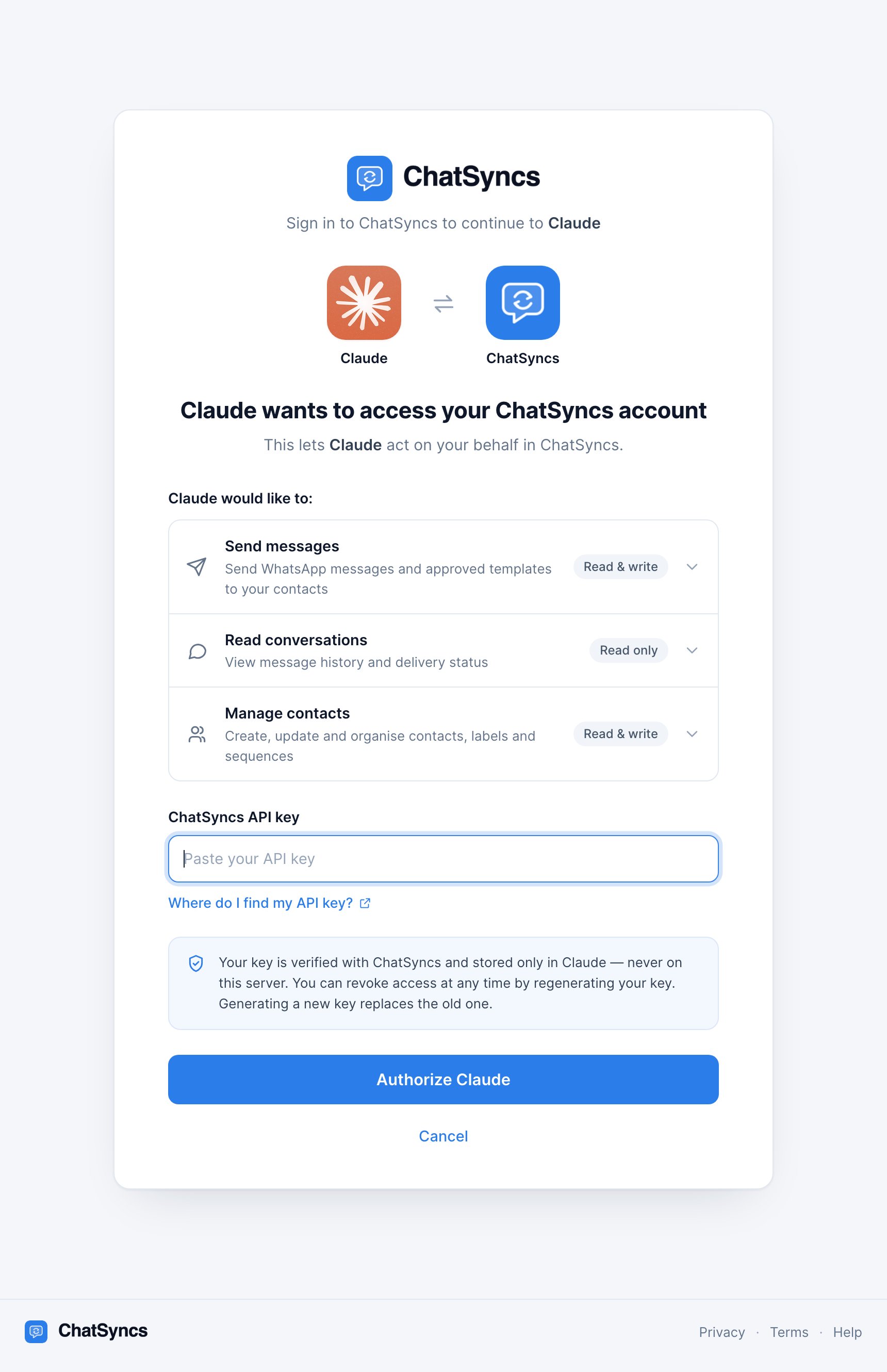 What's on it:
* **Who is asking.** The app's name and logo, for example *"Claude wants to access your
ChatSyncs account"*. Apps ChatSyncs can't identify show their own name with a plain icon, or
*"An AI assistant"* if they give no name.
* **What it can do.** *Send messages*, *Read conversations*, *Manage contacts* and *ChatSyncs help & guides* (public product information, nothing from your account). Click a row
to see the details.
* **ChatSyncs API key.** Paste your key here. The **Where do I find my API key?** link opens the
[API Developer Console](https://platform.chatsyncs.com/api/developer/console).
* **Authorize *app name*** (or **Authorize access** for an unnamed app). Checks your key with
ChatSyncs and connects.
* **Cancel.** Sends you back to the app without connecting.
If the key is right, you see this for a second before you're sent back to your app:
What's on it:
* **Who is asking.** The app's name and logo, for example *"Claude wants to access your
ChatSyncs account"*. Apps ChatSyncs can't identify show their own name with a plain icon, or
*"An AI assistant"* if they give no name.
* **What it can do.** *Send messages*, *Read conversations*, *Manage contacts* and *ChatSyncs help & guides* (public product information, nothing from your account). Click a row
to see the details.
* **ChatSyncs API key.** Paste your key here. The **Where do I find my API key?** link opens the
[API Developer Console](https://platform.chatsyncs.com/api/developer/console).
* **Authorize *app name*** (or **Authorize access** for an unnamed app). Checks your key with
ChatSyncs and connects.
* **Cancel.** Sends you back to the app without connecting.
If the key is right, you see this for a second before you're sent back to your app:
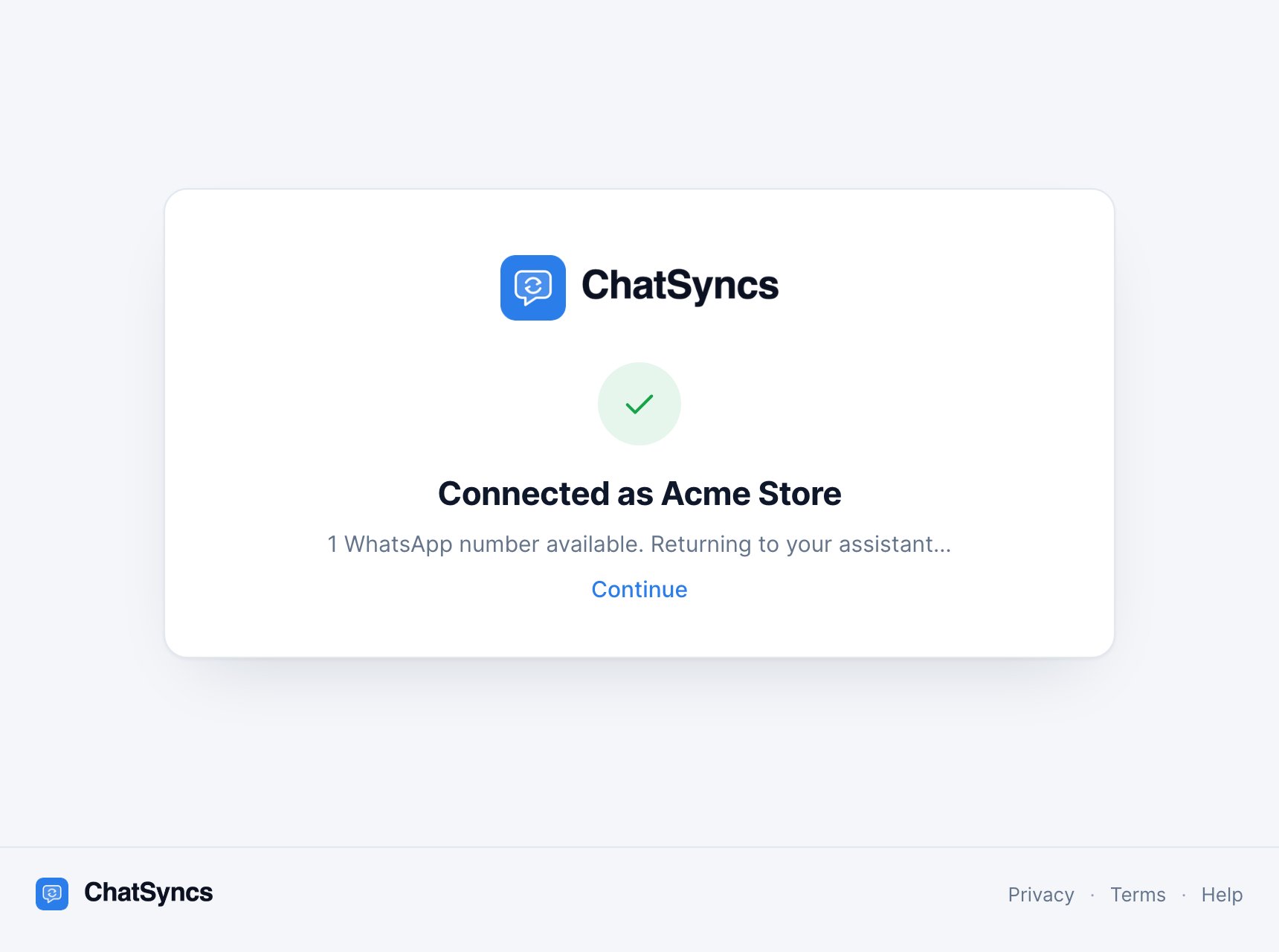 If the key is wrong, the page stays open with a red message such as
**ChatSyncs did not accept that key: Unauthenticated.** Copy the key again and retry.
**Check the address bar before you paste.** The real page always starts with
`https://mcp.chatsyncs.com/authorize`. If a page asking for your ChatSyncs key has any other
address, close it.
## How long the connection lasts
Your app stays connected and renews its access quietly in the background. You'll be asked for
your key again only if you **remove** ChatSyncs from the app, or the app goes **unused for more
than a year**.
If you **regenerate** your API key, every connected app stops working on purpose, but it
**won't ask you for the new key**. Each action fails with *"ChatSyncs rejected the API key"*
until you reconnect that app. See
[After you regenerate the key](/mcp/api-key#after-you-regenerate-the-key).
The connect page itself is valid for **10 minutes**. If you leave it open longer, you'll see
*"This page expired"*: start the connection again from your app.
## Where your key is stored
In **your AI app's credential storage**, not on the ChatSyncs MCP server. The server keeps no
database of keys: the key arrives with each request, is used, and is discarded. See
[Get your API key](/mcp/api-key#where-your-key-ends-up) for detail, and how to revoke access.
## Settings for any other app
If your app supports remote MCP servers but has no guide here, use these:
| Setting | Value |
| - | - |
| Server URL | `https://mcp.chatsyncs.com/mcp` |
| Transport | HTTP (also called "Streamable HTTP"). SSE is **not** supported. |
| Sign-in | OAuth, with automatic (dynamic) client registration. Leave client ID and secret empty. |
| Or, a header | `Authorization: Bearer YOUR_CHATSYNCS_API_KEY` |
The address `https://mcp.chatsyncs.com` (without `/mcp`) also works. These guides use `/mcp`
everywhere so it's the same in every app.
### Last resort: the key in the address
Some apps only have a box for a URL: no browser sign-in and no headers. For those, you can put
the key in the address itself:
```
https://mcp.chatsyncs.com/mcp/k/YOUR_CHATSYNCS_API_KEY
```
**Use this only if there's no other option.** The key becomes part of an ordinary-looking web
address, so:
* **Anyone who sees the address has full access** to your account: someone looking at your
screen, a screenshot, a shared config file, or a teammate you send the URL to.
* **Addresses get written down.** Apps, networks and hosting providers commonly record the
addresses they handle. ChatSyncs' code never writes your key to its logs, but the address
(key included) can still be recorded by hosting and network logs, including those of
ChatSyncs' own hosting provider and your app.
* **A wrong key isn't caught when you connect.** The app looks connected, and the error only
appears on your first request.
If you use it, regenerate your key whenever you stop using that app, and straight away if you
think the address has been seen.
## Frequently asked
ChatSyncs connects AI apps with your API key, the same key the Developer API uses. Your
password never leaves ChatSyncs, and you can cut off every AI app by regenerating the key
without changing your password.
No. The server is hosted at `mcp.chatsyncs.com`. You only add its address in your AI app.
Yes. Add ChatSyncs a second time in your app, with a different name (for example "ChatSyncs
Shop 2"), and paste the other account's key on the connect page.
With one number, it's used automatically. With several, the assistant asks which one. Say,
for example, *"send it from the support number"*.
No. Only the actions the assistant takes reach ChatSyncs, as ordinary API calls. Your chat
with the AI stays between you and your AI provider.
This documentation is built and hosted on [Mintlify](https://mintlify.com), a developer documentation platform.
If the key is wrong, the page stays open with a red message such as
**ChatSyncs did not accept that key: Unauthenticated.** Copy the key again and retry.
**Check the address bar before you paste.** The real page always starts with
`https://mcp.chatsyncs.com/authorize`. If a page asking for your ChatSyncs key has any other
address, close it.
## How long the connection lasts
Your app stays connected and renews its access quietly in the background. You'll be asked for
your key again only if you **remove** ChatSyncs from the app, or the app goes **unused for more
than a year**.
If you **regenerate** your API key, every connected app stops working on purpose, but it
**won't ask you for the new key**. Each action fails with *"ChatSyncs rejected the API key"*
until you reconnect that app. See
[After you regenerate the key](/mcp/api-key#after-you-regenerate-the-key).
The connect page itself is valid for **10 minutes**. If you leave it open longer, you'll see
*"This page expired"*: start the connection again from your app.
## Where your key is stored
In **your AI app's credential storage**, not on the ChatSyncs MCP server. The server keeps no
database of keys: the key arrives with each request, is used, and is discarded. See
[Get your API key](/mcp/api-key#where-your-key-ends-up) for detail, and how to revoke access.
## Settings for any other app
If your app supports remote MCP servers but has no guide here, use these:
| Setting | Value |
| - | - |
| Server URL | `https://mcp.chatsyncs.com/mcp` |
| Transport | HTTP (also called "Streamable HTTP"). SSE is **not** supported. |
| Sign-in | OAuth, with automatic (dynamic) client registration. Leave client ID and secret empty. |
| Or, a header | `Authorization: Bearer YOUR_CHATSYNCS_API_KEY` |
The address `https://mcp.chatsyncs.com` (without `/mcp`) also works. These guides use `/mcp`
everywhere so it's the same in every app.
### Last resort: the key in the address
Some apps only have a box for a URL: no browser sign-in and no headers. For those, you can put
the key in the address itself:
```
https://mcp.chatsyncs.com/mcp/k/YOUR_CHATSYNCS_API_KEY
```
**Use this only if there's no other option.** The key becomes part of an ordinary-looking web
address, so:
* **Anyone who sees the address has full access** to your account: someone looking at your
screen, a screenshot, a shared config file, or a teammate you send the URL to.
* **Addresses get written down.** Apps, networks and hosting providers commonly record the
addresses they handle. ChatSyncs' code never writes your key to its logs, but the address
(key included) can still be recorded by hosting and network logs, including those of
ChatSyncs' own hosting provider and your app.
* **A wrong key isn't caught when you connect.** The app looks connected, and the error only
appears on your first request.
If you use it, regenerate your key whenever you stop using that app, and straight away if you
think the address has been seen.
## Frequently asked
ChatSyncs connects AI apps with your API key, the same key the Developer API uses. Your
password never leaves ChatSyncs, and you can cut off every AI app by regenerating the key
without changing your password.
No. The server is hosted at `mcp.chatsyncs.com`. You only add its address in your AI app.
Yes. Add ChatSyncs a second time in your app, with a different name (for example "ChatSyncs
Shop 2"), and paste the other account's key on the connect page.
With one number, it's used automatically. With several, the assistant asks which one. Say,
for example, *"send it from the support number"*.
No. Only the actions the assistant takes reach ChatSyncs, as ordinary API calls. Your chat
with the AI stays between you and your AI provider.
This documentation is built and hosted on [Mintlify](https://mintlify.com), a developer documentation platform.