> ## Documentation Index
> Fetch the complete documentation index at: https://developer.chatsyncs.com/llms.txt
> Use this file to discover all available pages before exploring further.
# Meta Developer Account Setup
> How to create a Meta developer account, create a WhatsApp app with its business portfolio, and get a test phone number with a Phone Number ID.
The one-time setup process to get a Meta developer account, create a WhatsApp Business app and
its business portfolio, and obtain a test phone number — the starting point before any API
calls can be made.
## Setup steps
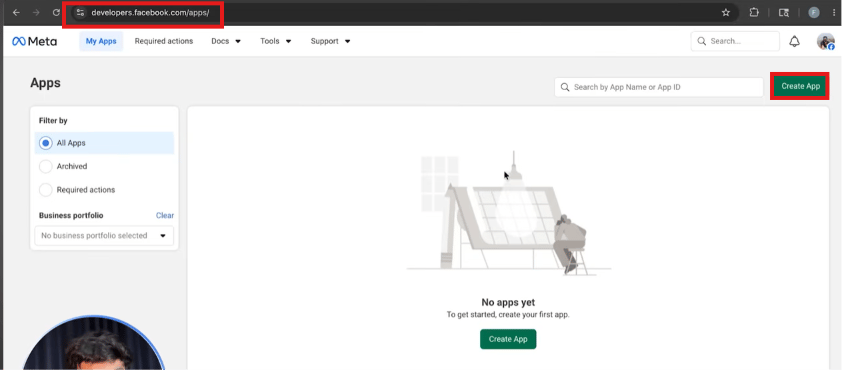
Go to `developers.facebook.com` and sign in or create an account.
Click **My Apps** → **Create App**.
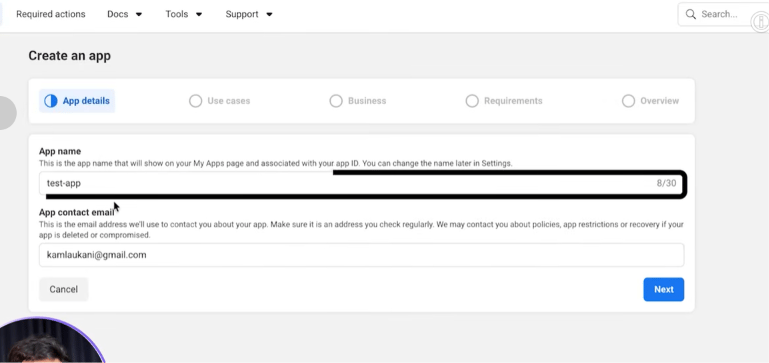
Give it an **App name** and an **App contact email**, then continue.
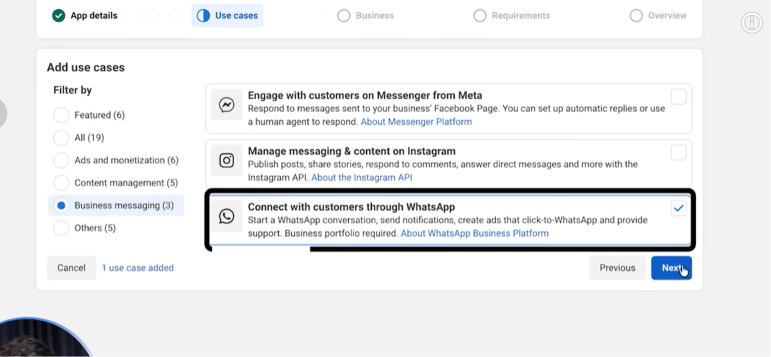
On the Use Cases step, select **Connect with customers through WhatsApp**.
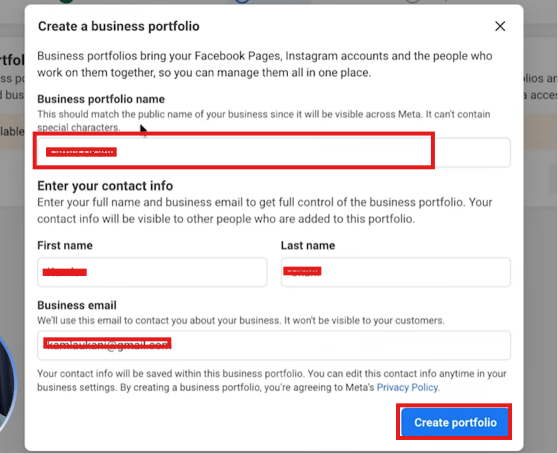
The app must be attached to a business portfolio. If none exists yet, create one with a
portfolio name and your contact info.
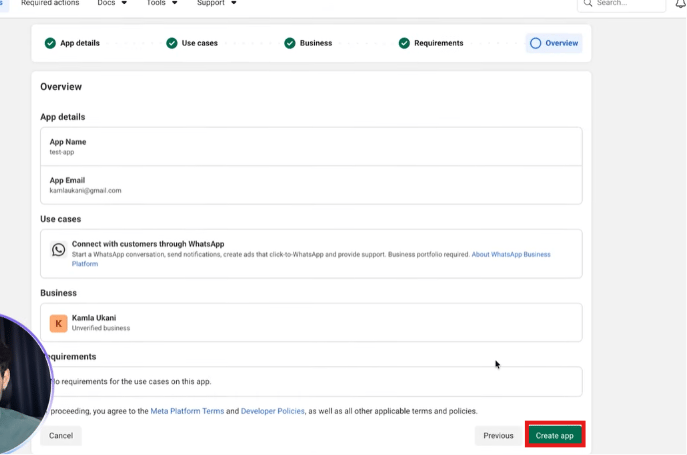
On the Overview step, confirm the app details, use case, and business portfolio, then click
**Create app**.
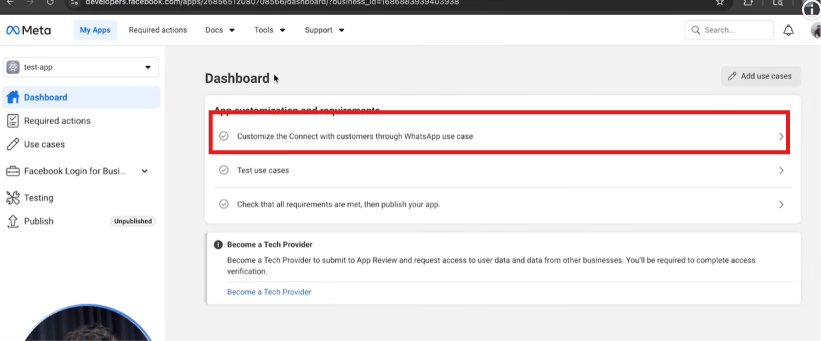
From the app dashboard, open **Customize the Connect with customers through WhatsApp use
case**.
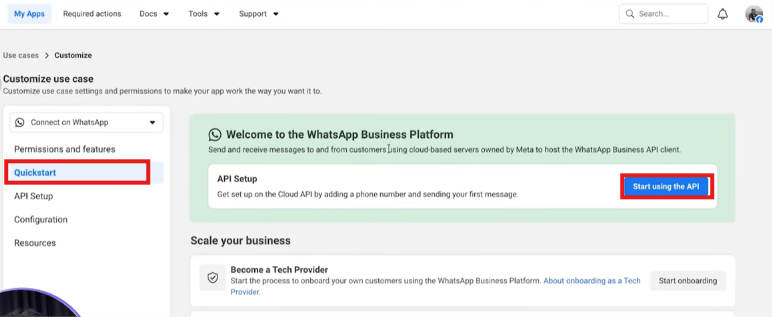
Under **Quickstart**, click **Start using the API** — this opens the API Setup screen.
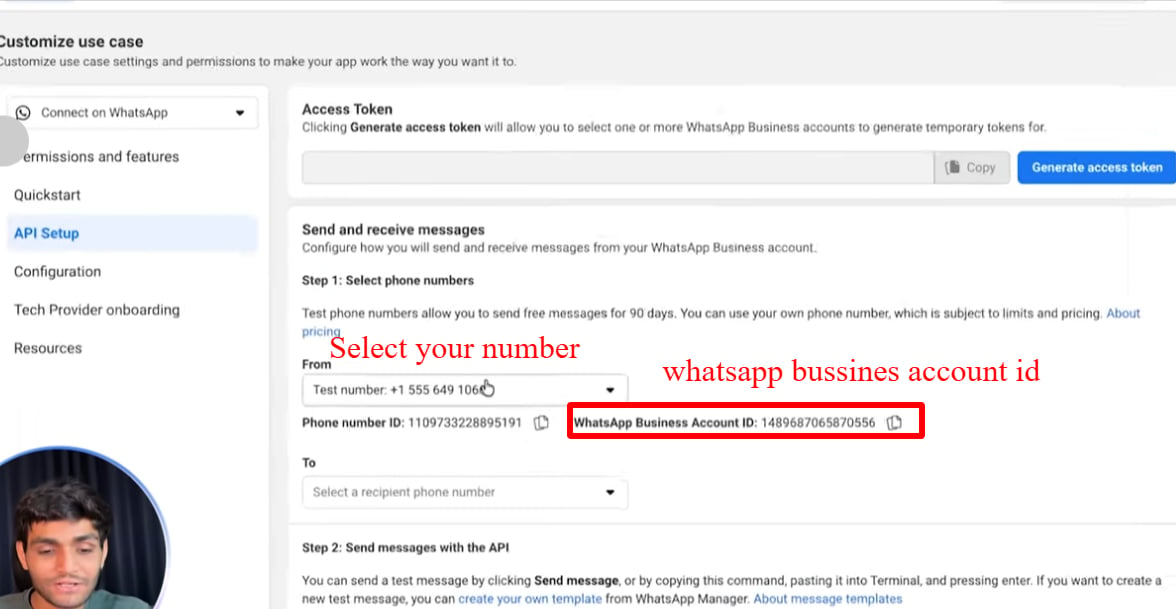
Under "Select phone numbers" you'll see a **test number** already provided by Meta. This is
free to use for 90 days. On the same screen you'll find your **Phone Number ID** and your
**WhatsApp Business Account ID (WABA ID)** — copy and save both.
You now have everything you need to make your first API call.
## Walkthrough screenshots
 ## Frequently asked
Create a Meta developer account at developers.facebook.com, create a new app, select the
WhatsApp use case, connect a business portfolio (creating one if you don't have one), and
finish creating the app. Meta gives you a free test number automatically.
No — if you don't have one yet, the app creation flow lets you create a business portfolio
on the spot, right at the "Business" step.
In the Meta developer dashboard → your app → WhatsApp → API Setup. Both IDs are shown
next to the test number.
Yes. Meta provides a test number for free for 90 days. You can send free test messages to
up to 5 verified phone numbers during that period.
No. A personal Meta account is enough to create a developer app and get a test number for
learning and development.
## Gotchas & common mistakes
* **Test number limit:** The Meta test number can only message up to 5 verified recipient
numbers. Add recipient numbers in the API Setup screen first.
* **90-day limit:** Test numbers are free for 90 days, then need renewal.
* **Business portfolio verification is optional at this stage** — Meta will offer to verify the
new portfolio immediately, but you can choose "Verify later" and still finish the rest of the
setup.
* **App vs account:** The Meta developer *app* is not the same as the WABA. The app is the
developer container; the WABA is the WhatsApp business account inside it. See the
[WhatsApp API glossary](/meta-api/concepts/whatsapp-api-glossary).
This documentation is built and hosted on [Mintlify](https://mintlify.com), a developer documentation platform.
## Frequently asked
Create a Meta developer account at developers.facebook.com, create a new app, select the
WhatsApp use case, connect a business portfolio (creating one if you don't have one), and
finish creating the app. Meta gives you a free test number automatically.
No — if you don't have one yet, the app creation flow lets you create a business portfolio
on the spot, right at the "Business" step.
In the Meta developer dashboard → your app → WhatsApp → API Setup. Both IDs are shown
next to the test number.
Yes. Meta provides a test number for free for 90 days. You can send free test messages to
up to 5 verified phone numbers during that period.
No. A personal Meta account is enough to create a developer app and get a test number for
learning and development.
## Gotchas & common mistakes
* **Test number limit:** The Meta test number can only message up to 5 verified recipient
numbers. Add recipient numbers in the API Setup screen first.
* **90-day limit:** Test numbers are free for 90 days, then need renewal.
* **Business portfolio verification is optional at this stage** — Meta will offer to verify the
new portfolio immediately, but you can choose "Verify later" and still finish the rest of the
setup.
* **App vs account:** The Meta developer *app* is not the same as the WABA. The app is the
developer container; the WABA is the WhatsApp business account inside it. See the
[WhatsApp API glossary](/meta-api/concepts/whatsapp-api-glossary).
This documentation is built and hosted on [Mintlify](https://mintlify.com), a developer documentation platform.